This guide shows you ways to test the hardware subsystems of a
physical Fuchsia device.
> [!WARNING]
> **Experimental:** All of the tools and workflows mentioned in this guide are experimental and can change at anytime.
## Intended audience of this guide
This guide assumes that you're familiar with hardware and
low-level software development.
## Overview
All of the Fuchsia hardware testing workflows in this guide assume
that your **Fuchsia device** is connected to a **test host** . The
test host is a laptop or desktop running Linux or Windows.
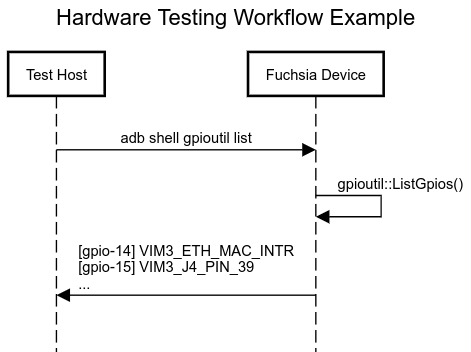
To test a hardware subsystem of your Fuchsia device you run a command
like `adb shell gpioutil list` on the test host. The first part of the command,
`adb shell`, is the **transport system** that handles communication between
your test host and Fuchsia device. The second part of the command,
`gpioutil list`, is the **testing tool** that actually exercises or queries
a hardware subsystem on your Fuchsia device.
## Supported setups
The OS of your test host determines what transport systems you
can use. For example, currently only `adb` is supported
on Windows. The following table shows what combinations of test
host OS and transport system are supported:
| Test Host OS | `ffx` | `adb` | UART |
|---|---|---|---|
| Linux | | | |
| Windows | | | |
The transport system determines what kind of physical connection
you can use between your test host and target device. For example,
`adb` requires a USB connection between the test host and Fuchsia
device. The hardware layout of your Fuchsia device also determines
what transport system you can use. For example, if your Fuchsia device
doesn't expose GND, TX, and RX pins, then you can't use UART.
## Configuring Fuchsia builds for hardware testing
This section provides guidance for people who need to build a Fuchsia
image with hardware testing tools enabled from source. If you already have a
Fuchsia image with the tools you need then you can skip this section.
### Building Fuchsia from source
If you've never built Fuchsia from source and need help with the
basic workflows, see the following tutorials:
1. [Download the source code](https://fuchsia.dev/docs/get-started/get_fuchsia_source)
2. [Configure and build Fuchsia](https://fuchsia.dev/docs/get-started/build_fuchsia)
### Including hardware testing tools in your build
If you try running a hardware testing tool (like `gpioutil` for example)
and get a `not found` error, it probably means that the hardware
testing tool was not enabled when your Fuchsia image was built.
Example:
-v: 1: gpioutil: not found
To fix this, try adding `--with-base //bundles/tools` to your [`fx set`](https://fuchsia.dev/reference/tools/fx/cmd/set)
call:
fx set PRODUCT.BOARD --with-base '//bundles/tools'
The `--with-base` option adds all of the dependencies listed in
[`//bundles/tools/BUILD.gn`](https://cs.opensource.google/fuchsia/fuchsia/+/main:/bundles/tools/BUILD.gn) as [base packages](https://fuchsia.dev/docs/concepts/packages/package#base-packages) in your Fuchsia image.
Most of Fuchsia's hardware testing tools are in this bundle.
> [!CAUTION]
> **Caution:** PRODUCT and BOARD are placeholder values. You need to replace them with real [product](https://fuchsia.dev/docs/development/build/software_assembly/build_configuration#products) and [board](https://fuchsia.dev/docs/development/build/software_assembly/build_configuration#boards) names. Run `fx list-products` and `fx list-boards` to see which products and boards are available in your Fuchsia checkout. You should also double-check that you are using the correct product and board. If you're using the wrong product or board, that could also explain why a hardware testing tool is missing.
#### Include a single tool directly
If the hardware testing tool you need is not listed in [`//bundles/tools/BUILD.gn`](https://cs.opensource.google/fuchsia/fuchsia/+/main:/bundles/tools/BUILD.gn)
try setting the `--with-base` value to the path to the hardware testing
tool's `BUILD.gn` file. For example, the `gpioutil` build file is located at
`//src/devices/gpio/bin/gpioutil/BUILD.gn`. You can directly include `gpioutil`
as a base package with the following `fx set` command:
fx set PRODUCT.BOARD --with-base '//src/devices/gpio/bin/gpioutil'
You can repeat the `--with-base` option as many times as needed:
fx set PRODUCT.BOARD \
--with-base '//src/devices/gpio/bin/gpioutil' \
--with-base '//src/media/audio/tools/audio-driver-ctl'
#### Include adb
To enable `adb` in your Fuchsia image, you will need to include the
[adb function driver](https://cs.opensource.google/fuchsia/fuchsia/+/main:/src/developer/adb/drivers/README.md) and a daemon.
The daemon can be the [Fuchsia adb daemon](https://cs.opensource.google/fuchsia/fuchsia/+/main:/src/developer/adb/bin/README.md)
or any other daemon that speaks to the function driver.
## Running commands
As explained in [Overview](https://fuchsia.dev/fuchsia-src/development/testing/hardware/guide#overview), you send commands from
your test host to your Fuchsia device over a transport system
like `ffx`, `adb`, or UART. This section provides more detail
about how to run commands with each transport system.
### A key difference between transport systems: capabilities
The underlying
[](https://fuchsia.dev/docs/glossary#component)
that powers each transport system affects what features are available
to you. Different components expose different
[](https://fuchsia.dev/docs/glossary#capability)
.
The capabilities available in [`ffx`](https://fuchsia.dev/fuchsia-src/development/testing/hardware/guide#ffx) are determined by
the component you're exploring. The capabilities available in
[`adb`](https://fuchsia.dev/fuchsia-src/development/testing/hardware/guide#adb) and [UART](https://fuchsia.dev/fuchsia-src/development/testing/hardware/guide#uart) are determined by [`console-launcher`](https://cs.opensource.google/fuchsia/fuchsia/+/main:/src/bringup/bin/console-launcher/README.md),
which is the underlying component that powers those shells.
### ffx
[`ffx`](https://fuchsia.dev/docs/development/tools/ffx/overview) is Fuchsia's main tool
for host-target interactions.
To start an interactive shell:
ffx component explore COMPONENT -l namespace
> [!CAUTION]
> **Caution:** COMPONENT is a placeholder value. You need to replace it with the name of a real diagnostic component.
To run single commands (`gpioutil list` for example):
ffx component explore COMPONENT -l namespace -c 'gpioutil list'
### UART
Most Fuchsia
[](https://fuchsia.dev/docs/glossary#board)
support
3-pin (TX, RX, GND) UART communication. They usually expect the
typical [115200 8N1](https://en.wikipedia.org/wiki/8-N-1)
UART configuration. To send commands from your test host to your
Fuchsia device you'll need a serial console like `minicom` or
[`fx serial`](https://fuchsia.dev/reference/tools/fx/cmd/serial).
### adb
If your Fuchsia image [included `adb`](https://fuchsia.dev/fuchsia-src/development/testing/hardware/guide#include-adb) then you can send
commands from your test host to your Fuchsia device with [`adb`](https://developer.android.com/studio/command-line/adb).
To start an interactive shell:
adb shell
To run single commands (`gpioutil list` for example):
adb shell 'gpioutil list'
Fuchsia only has partial support for `adb` by design. See [RFC-0200](https://fuchsia.dev/docs/contribute/governance/rfcs/0200_support_adb_protocol_and_interface_for_hardware_testing) for
details on what's supported and what's not. See
[`//src/developer/adb/bin/README.md`](https://cs.opensource.google/fuchsia/fuchsia/+/main:/src/developer/adb/bin/README.md)
for more guidance on using `adb` with Fuchsia.
## List of hardware testing tools
The following table points you to the specific tools that you
can use to test out the various hardware subsystems on your
Fuchsia device.
| Hardware subsystem | Tools |
|---|---|
| Audio | - [`audio-driver-ctl`](https://fuchsia.dev/docs/reference/tools/hardware/audio-driver-ctl) |
| GPIO | - [`gpioutil`](https://fuchsia.dev/docs/reference/tools/hardware/gpioutil) |
| I2C | - [`i2cutil`](https://fuchsia.dev/docs/reference/tools/hardware/i2cutil) |
| Lights | - [`lights-cli`](https://fuchsia.dev/docs/reference/tools/hardware/lights-cli) |
[](https://issues.fuchsia.dev/issues/new?component=1439230&template=1881640&description=Issue+on:+https://fuchsia.dev/docs/development/testing/hardware/guide.md "Report a bug or suggest improvements on this page") [](https://cs.opensource.google/fuchsia/fuchsia/+/main:docs/development/testing/hardware/guide.md "View the source code of this page") [](https://ci.android.com/edit?repo=fuchsia/fuchsia/main&file=docs/development/testing/hardware/guide.md&cloneRepo=fuchsia/fuchsia:refs/heads/main&fullPath=fuchsia/docs/development/testing/hardware/guide.md "Edit the source code of this page")